
PowerShell and APIs: POST, PUT, and PATCH Commands
Creating, Updating, and Modifying Data Like a Pro
Homework Discussion (Week 7)
Let’s review last week’s query parameter and filtering homework:
Used query parameters to narrow down API results and improve performance.
Selected specific properties from API responses to get exactly what we needed.
Compared PowerShell’s filtering capabilities with Postman’s parameter interface.
Well done to everyone who completed the assignment! Understanding how to manipulate API requests is crucial for proper data retrieval.
Why POST, PUT, and PATCH Matter for PowerShell Users
So far we’ve been reading data from APIs using GET requests. But what about when you need to create or update data? That’s where POST, PUT, and PATCH come in. These are the “write” operations of the API world:
POST: Creates new resources (like adding a new user)
PUT: Replaces entire resources (like updating a complete user profile)
PATCH: Updates parts of resources (like changing just an email address)
Understanding these methods turns you from an API consumer into an API expert who can automate data creation and updates.
The Big Three: POST vs PUT vs PATCH
Think of it like editing a document:
POST = Creating a new document
PUT = Replacing the entire document with a new version
PATCH = Making specific edits to the existing document
Here’s how they work in PowerShell:
POST: Creating New Resources
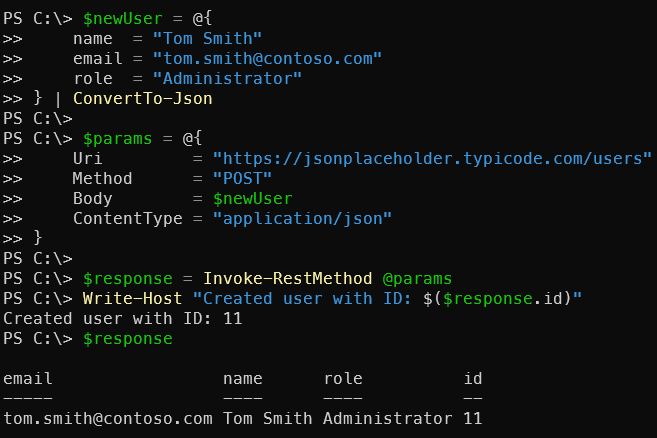
POST is for creating brand new stuff. The server usually returns an ID and tells you where the new resource lives.
$newUser = @{
    name  = "Tom Smith"
    email = "tom.smith@contoso.com"
    role  = "Administrator"
} | ConvertTo-Json

$params = @{
    Uri         = "https://jsonplaceholder.typicode.com/users"
    Method      = "POST"
    Body        = $newUser
    ContentType = "application/json"
}

$response = Invoke-RestMethod @params
Write-Host "Created user with ID: $($response.id)"
$response
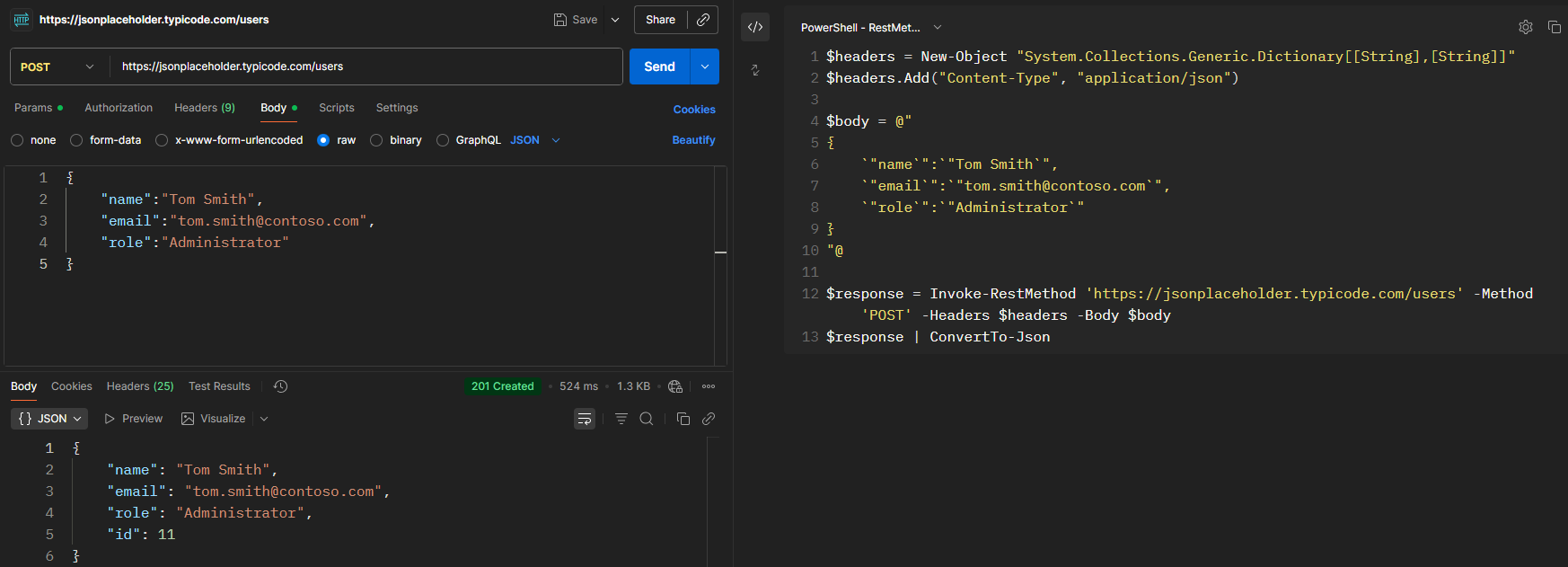
Here’s the PostMan view of the same POST request,and note again the code example created on the right sidebar.
Key POST Facts:
Run it multiple times you will get multiple items (like swiping your credit card multiple times)
Server assigns the resource ID
Returns the newly created resource
PUT: Replacing Entire Resources
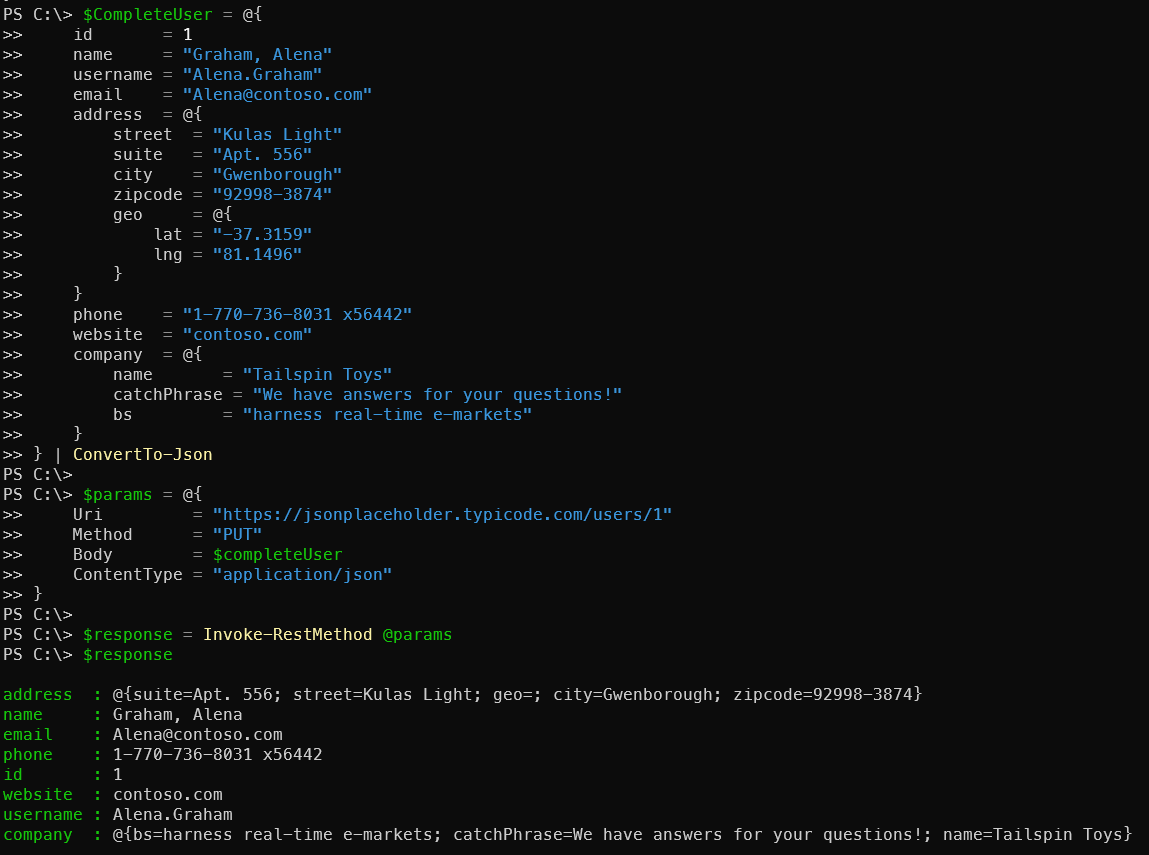
PUT replaces the entire resource. If you don’t include a field, it gets wiped out!
$CompleteUser = @{
    id       = 1
    name     = "Graham, Alena"
    username = "Alena.Graham2"
    email    = "Alena@contoso.com"
    address  = @{
        street  = "Kulas Light"
        suite   = "Apt. 556"
        city    = "Gwenborough"
        zipcode = "92998-3874"
        geo     = @{
            lat = "-37.3159"
            lng = "81.1496"
        }
    }
    phone    = "1-770-736-8031 x56442"
    website  = "contoso.com"
    company  = @{
        name       = "Tailspin Toys"
        catchPhrase = "We have answers for your questions!"
        bs         = "harness real-time e-markets"
    }
} | ConvertTo-Json

$params = @{
    Uri         = "https://jsonplaceholder.typicode.com/users/1"
    Method      = "PUT"
    Body        = $completeUser
    ContentType = "application/json"
}

$response = Invoke-RestMethod @params
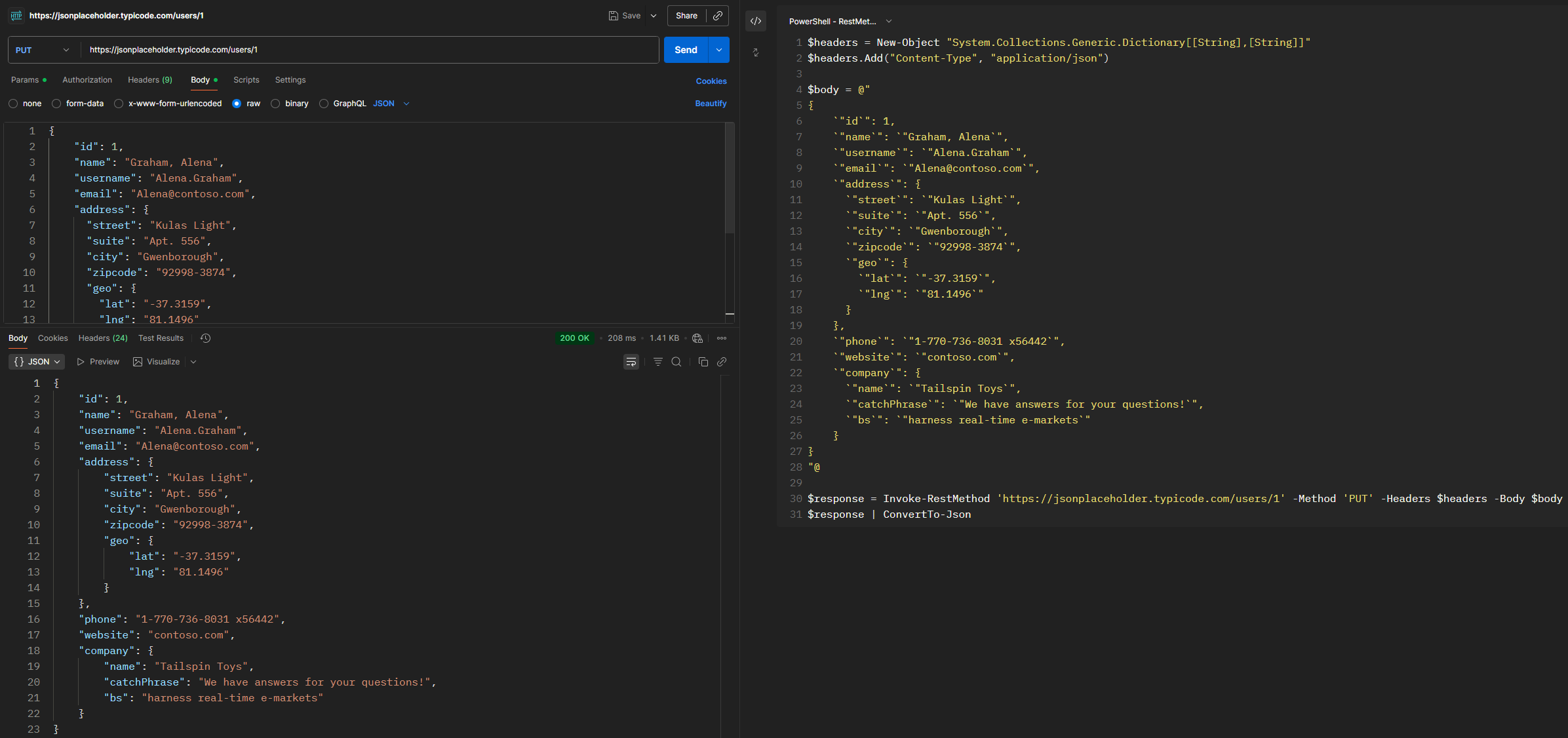
And the postman equivalent:
Key PUT Facts:
Always the same (run it 10 times, same result)
Replaces the entire resource
You specify the resource ID in the URL
Missing fields get set to null/default values
PATCH: Surgical Updates
PATCH lets you update just specific fields without touching the rest. Here is a simple example. Alena got married and needs to change her email and name in the API database. For simple patch operations, you can use the Content-Type of application/json.
# Create a new hashtable with only the fields to update, then convert to JSON
$emailUpdate = @{
    email = "Alena.Jones@contoso.com"
    name  = "Alena Jones"
    username = "Alena123"
} | ConvertTo-Json

# Set up the parameters for the PATCH request
$params = @{
    Uri         = "https://jsonplaceholder.typicode.com/users/1"
    Method      = "PATCH"
    Body        = $emailUpdate
    ContentType = "application/json"
}
# send the PATCH request
$response = Invoke-RestMethod @params
In this example, we created a powershell hashtable with only the fields we want to update and sent that in the body of the PATCH request.
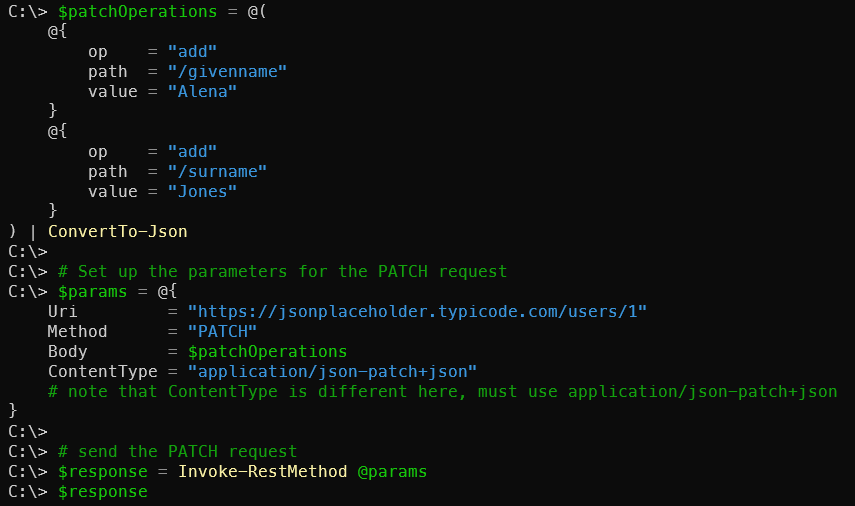
For more complex PATCH operations, we’ll use the JSON Patch format. Advanced patch operations can include adding, removing, or replacing specific fields. These requests must have the Content-Type header set to “application/json-patch+json”.
# First create the patch operations as an array of hashtables
$patchOperations = @(
    @{
        op    = "add"
        path  = "/givenname"
        value = "Alena"
    }
    @{
        op    = "add"
        path  = "/surname"
        value = "Jones"
    }
) | ConvertTo-Json

# Set up the parameters for the PATCH request
$params = @{
    Uri         = "https://jsonplaceholder.typicode.com/users/1"
    Method      = "PATCH"
    Body        = $patchOperations
    ContentType = "application/json-patch+json"

    # note that ContentType is different here, it must use application/json-patch+json
}

# send the PATCH request
$response = Invoke-RestMethod @params

# this a mock API, so the response won’t show changes, but in a real API, only the specified fields would be updated. Many APIs require authentication for PATCH requests.
$response
Key PATCH Facts:
Not always independent (depends on the operations)
Updates only specified fields
Leaves other fields unchanged
Great for mobile apps and bandwidth-conscious scenarios
Typically requires authentication
Working Exercise
Use PowerShell to POST a new resource to the JSONPlaceholder API (
https://jsonplaceholder.typicode.com/posts).Try to PUT an update to that resource (even though it’s fake, observe the response).
Use PATCH to make a partial update to a different resource.
Write a PowerShell function that wraps all three operations for easy reuse.
Example: PowerShell Functions for POST, PUT, and PATCH
Here’s how you can wrap POST, PUT, and PATCH operations into reusable PowerShell functions for the JSONPlaceholder API:
# Function one, creates a new post
function New-JsonPlaceholderPost {
    param (
        [string]$Title,
        [string]$Body,
        [int]$UserId
    )
    $postData = @{
        title  = $Title
        body   = $Body
        userId = $UserId
    } | ConvertTo-Json

    Invoke-RestMethod -Uri "https://jsonplaceholder.typicode.com/posts"`
        -Method POST -Body $postData -ContentType "application/json"
}

# Function two, replaces an existing post
function Set-JsonPlaceholderPost {
    param (
        [int]$Id,
        [string]$Title,
        [string]$Body,
        [int]$UserId
    )
    $putData = @{
        id     = $Id
        title  = $Title
        body   = $Body
        userId = $UserId
    } | ConvertTo-Json

    Invoke-RestMethod -Uri "https://jsonplaceholder.typicode.com/posts/$Id" `
        -Method PUT -Body $putData -ContentType "application/json"
}

# Function three, updates part of an existing post
function Update-JsonPlaceholderPost {
    param (
        [int]$Id,
        [string]$Title,
        [string]$Body
    )
    $patchData = @{
        title = $Title
        body  = $Body
    } | ConvertTo-Json

    Invoke-RestMethod -Uri "https://jsonplaceholder.typicode.com/posts/$Id" `
        -Method PATCH -Body $patchData -ContentType "application/json"
}
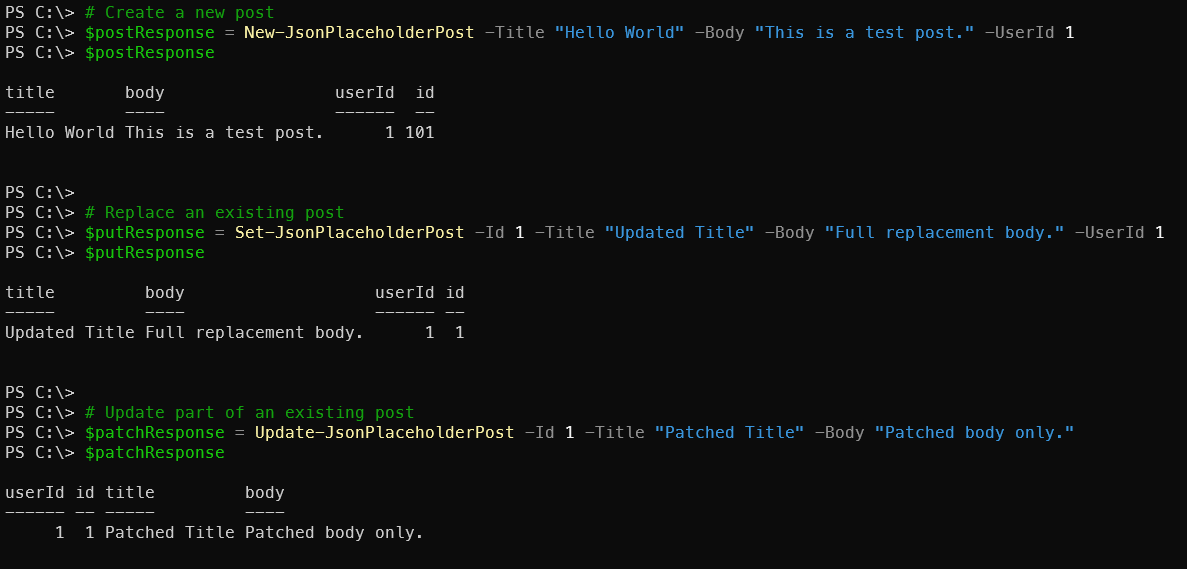
You can now call these functions to create, replace, or update posts easily:
# Create a new post
$postResponse = New-JsonPlaceholderPost -Title "Hello World" -Body "This is a test post." -UserId 1
$postResponse

# Replace an existing post
$putResponse = Set-JsonPlaceholderPost -Id 1 -Title "Updated Title" -Body "Full replacement body." -UserId 1
$putResponse

# Update part of an existing post
$patchResponse = Update-JsonPlaceholderPost -Id 1 -Title "Patched Title"-Body "Patched body only."
$patchResponse
Common Pitfalls and How to Avoid Them
The PUT Trap: Forgetting to include all fields in a PUT request
$BaseURI = "https://jsonplaceholder.typicode.com"
# This will null out missing fields!
$partialUpdate = @{ email = "new@email.com" } | ConvertTo-Json

Invoke-RestMethod -Uri "$BaseURI/users/10" -Method PUT -Body $partialUpdate

# Always get the current data first, then modify it
$currentUser = Invoke-RestMethod -Uri "$BaseURI/users/10" -Method GET
$currentUser.email = "new@email.com"
$completeUpdate = $currentUser | ConvertTo-Json

$params = @{
    Uri         = "https://jsonplaceholder.typicode.com/users/10"
    Method      = "PUT"
    Body        = $completeUpdate
    ContentType = "application/json"
}
Invoke-RestMethod @params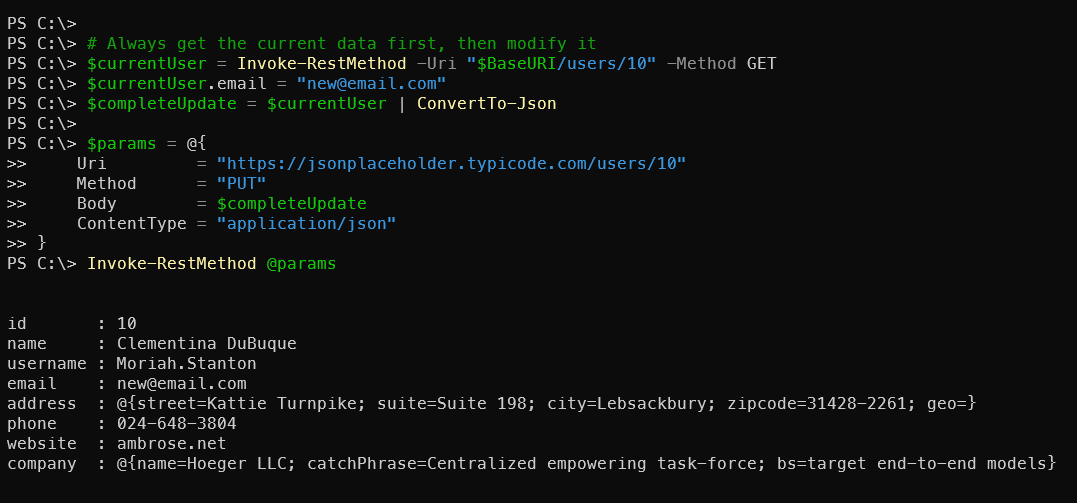
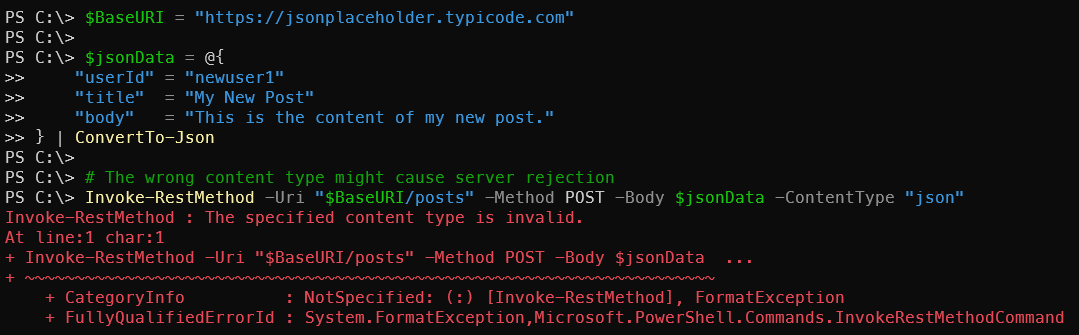
The Content-Type Mistake: Always specify the right content type
$BaseURI = "https://jsonplaceholder.typicode.com"

$jsonData = @{
    "userId" = "newuser1"
    "title"  = "My New Post"
    "body"   = "This is the content of my new post."
} | ConvertTo-Json

# The wrong content type might cause server rejection
Invoke-RestMethod -Uri "$BaseURI/posts" -Method POST -Body $jsonData -ContentType "json"

#Always specify the correct content type with splatting
Invoke-RestMethod -Uri "$BaseURI/posts" -Method POST -Body $jsonData -ContentType "application/json"
Mini Challenge
Find a public API that supports POST operations (like JSONPlaceholder).
Create a new resource using POST in PowerShell.
Update that resource using PUT (replace the entire thing).
Make a smaller change using PATCH.
Compare the responses and see how each method behaves differently.
Final Thoughts
POST, PUT, and PATCH are your tools for making APIs do things, not just show things. POST creates, PUT replaces, PATCH tweaks. Each has its place:
Use POST when creating new resources
Use PUT when you have complete replacement data
use PATCH when you want surgical precision
Master these three, and you’ll transform from someone who reads APIs to someone who commands them!
Homework Assignment
Use PowerShell to POST a new resource to the JSONPlaceholder API (
https://jsonplaceholder.typicode.com/posts).Try to PUT an update to that resource (even though it’s fake, observe the response).
Use PATCH to make a partial update to a different resource.
Write a PowerShell function that wraps all three operations for easy reuse.
Document what you learned about when to use each method.
Further Reading and References
JSONPlaceholder Mock API - Perfect for testing POST/PUT/PATCH