
Postman and the API Community: Your Passport to Public APIs
Sign Up, Set Up, and Start Scripting with Shared Collections

Homework Discussion (Last Week)
Quick recap of last week’s assignment — a practical test of PowerShell skills:
Used
Invoke-RestMethodto fetch a random joke from the Chuck Norris Jokes API.Printed the joke and its category to the console.
Used
Invoke-WebRequestto download a small image from any public URL.Printed the file size of the downloaded image.
Extra credit: Combined both cmdlets in a single script.
What joke did you get? Did you run into any problems? What did you learn about the API? Did you have to use the API documentation?
What is Postman?

Postman is an API Platform. Beyond just testing and using APIs, Postman provides services that integrate with CI/CD pipelines and GRC (Governance, Risk, and Compliance) tools. It’s a comprehensive system that supports millions of projects, end to end. For this course we will be using a free account to download the Postman app and explore public APIs.
Postman started as a Chrome extension in 2012, created by Abhinav Asthana to simplify API testing. Now the platform has over 20 million users; from solo developers (that’s us!) to Fortune 500 companies like Microsoft, Meta, Amazon, and PayPal. In 2023, Postman began rolling out new AI features such as PostBot that assists API development; including code generation, documentation, and testing.
What We’re Learning Today
This week you’ll learn how to sign up for Postman, set up your workspace, connect to free APIs, and search the Postman community for ready-to-use API collections. You will create a team workspace, invite members, and explore collaboration features. By the end of this lesson, you’ll be (a little more) comfortable navigating Postman and using it to interact with APIs.
Signing Up and Setting Up Postman
The first thing we need to do is create a free Postman account and set up our workspace. A Workspace is a shared container where you can organize your API requests, environments, and collections. A Workspace also allows you to fork other collections, which is a way to copy and modify someone else’s API requests for your own use. These forks can also be used to update the original collection if you have permissions.
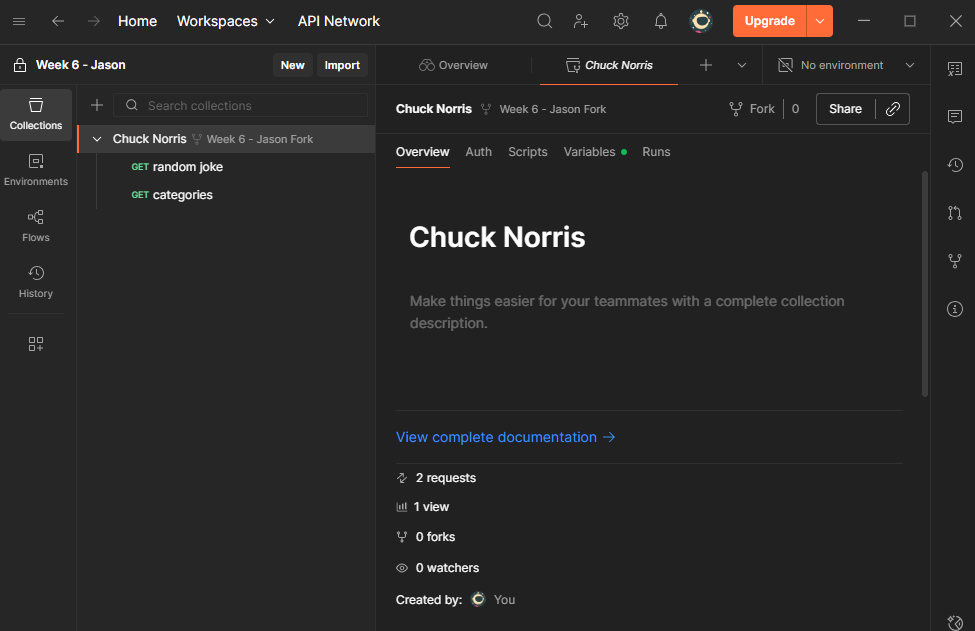
(Example of a fork of the “Chuck Norris” collection)
Go to https://identity.getpostman.com/login and click “Create Free Account”.
Create your account using email, Google, or GitHub.
Download and install the Postman app for your OS: https://www.postman.com/downloads/. (Web Version: https://web.postman.co/)
Log in and find the Workspaces menu, create a new blank workspace.
Name the Workspace “Week 6 - Your Name” (replace “Your Name” with your actual name).
Set the workspace to Internal. Note the permissions settings. For this course, we want to set “Only you and Invited People”.
Your Workspace will open, and you should see tabs for Collections, Environments, History, and more.
Click “create collection” and name it “Week 6 - Your Name Collection”.
Your workspace and collection are now set up and ready for action!
Using Postman with Free APIs
Click “New” and select “HTTP”.
Name your request “Week 6 - Your Name - Chuck Request” and save it to a new or existing collection.
Set the request type to GET and enter the Chuck Norris jokes API URL:
https://api.chucknorris.io/jokes/randomClick “Send”. The response will appear in the lower pane, usually as JSON. You can use the Preview tab to see a formatted view of the response.
Save your request to the collection.
Here we have used a free public API that returns a random Chuck Norris joke. You can explore the response, which includes the joke text, its ID, URL, and categories. Saving the request lets you and your team update and reuse later.
Searching the Community for API Collections
My favorite feature of Postman is the ability to explore and fork public API collections shared by the community. This is a great way to discover new APIs, learn from others, and quickly get started with real-world data. Vendors and 1st-party developers often publish collections that you can use as-is or modify for your needs.
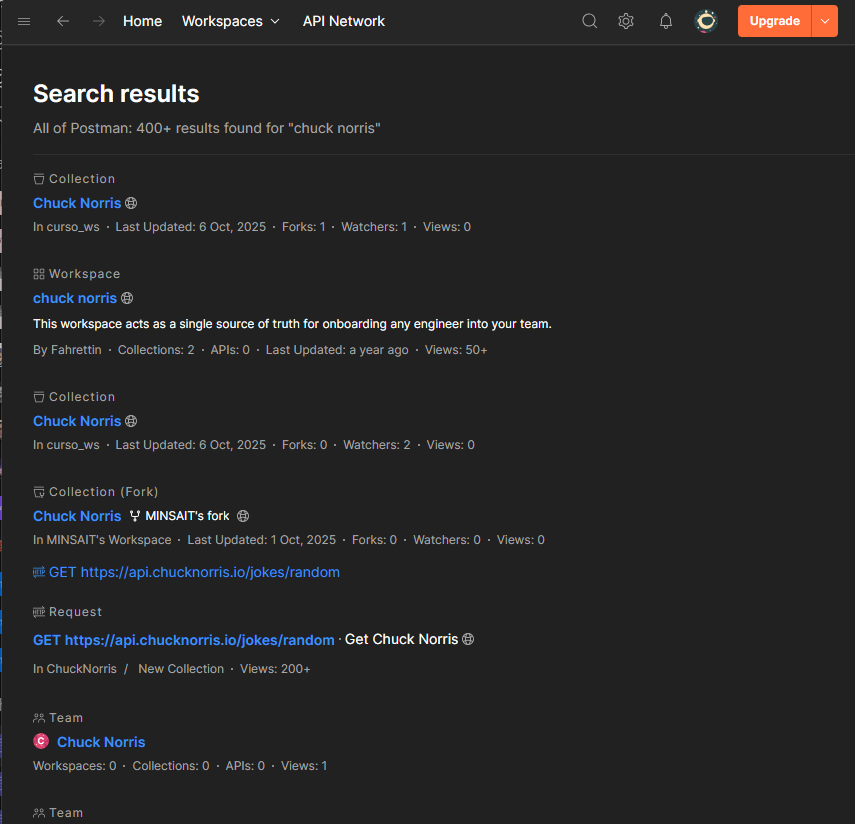
(Example of the Chuck Norris search results)
Click “API Network” in the left sidebar (or top menu bar) or visit https://www.postman.com/explore.
Use the search bar to find Chuck Norris collections.
There are hundreds of requests, and dozens of collections to choose from.
Select the collections filter on the left side, and select the first collection “Chuck Norris” (created by @curso_ws)
@curso_ws has created a collection with Chuck Norris jokes and a trivia quiz.
Click on the Chuck Norris folder and click Fork. Name your fork “Chuck Norris - Your Name”. and add it to your workspace.
Creating a Team Workspace and Inviting Members
Another great feature of Postman is the ability to create Team Workspaces, where you can work together with your colleagues. Here’s how to set up a Team Workspace and invite members:
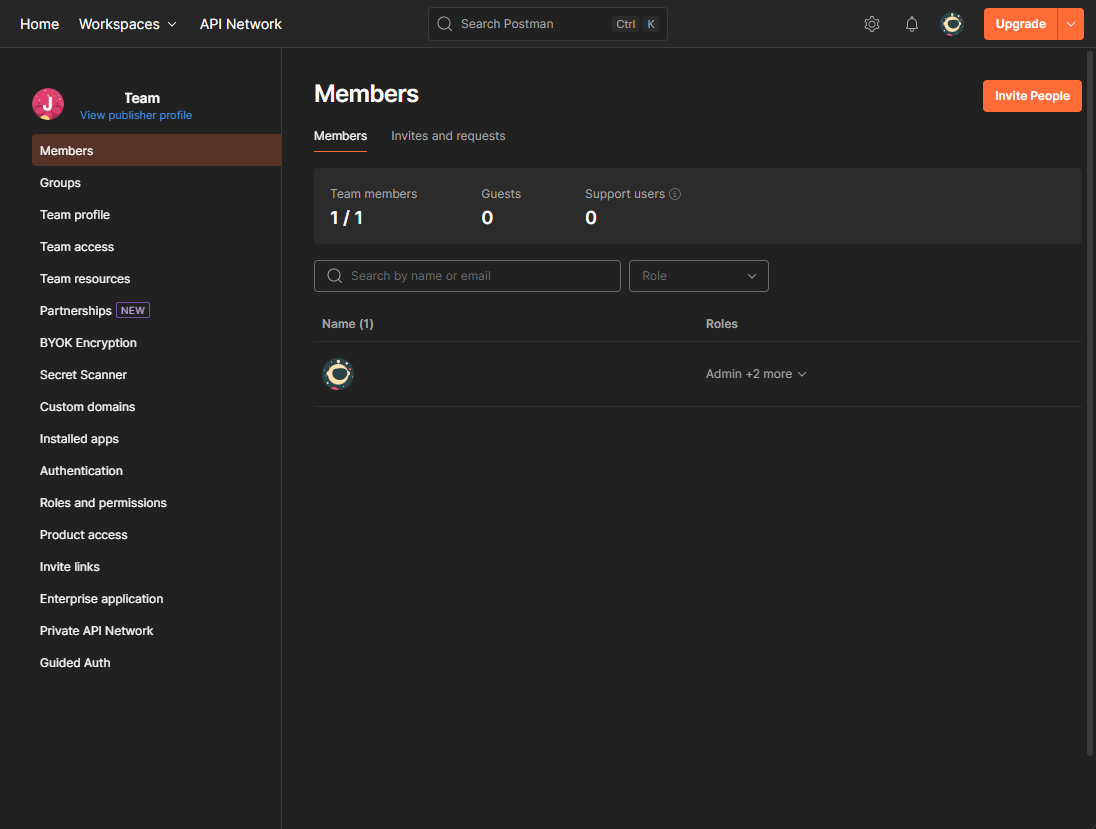
(Example of the Team management page)
Go to the Workspaces menu and create a blank workspace.
In Create Workspace window, name your Workspace “Team Workspace - Your Name”.
Make sure that “Manage Access” is set to “Everyone in your team”.
You should see a notice that “Since you don’t have a team, we will create one for you along with this workspace.”
What if you already have a team? Manage access will show your teams instead of creating a new one.
How do you create a team manually? Select the Home button and Create Team will be a button on the top left.
Once the workspace is created, a window will appear to name the team and invite members by email (or invite link).
Name the Team “Your Name Team”, and set the purpose to “Share and test existing APIs together”
Your team workspace is now ready. To invite more members click on the “Invite People” or “Manage Team” button. This can also be found under the team workspace settings.
Working Exercise
Find another public API collection from our previous lessons. Use Cat-Facts, Dog CEO, Chuck Norris or any other free API you like.
Fork it to your workspace.
Run at least one request from the collection and note the response.
Explore the request and response and see if you can modify it (for example, change query parameters or headers).
Working Exercise Example APIs
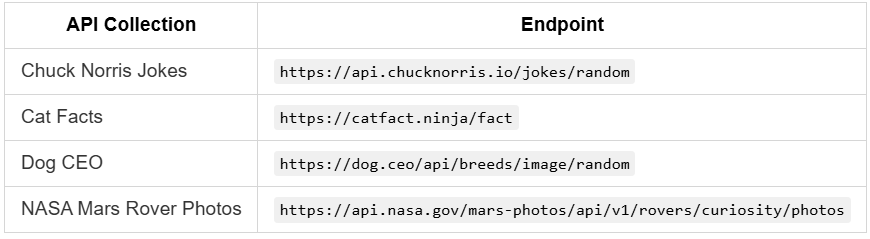
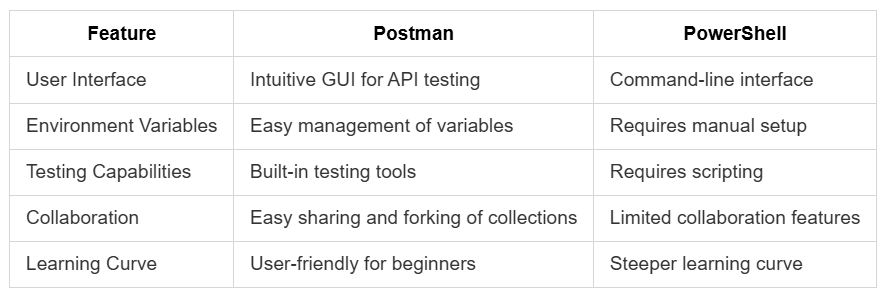
Postman vs PowerShell: When to Use Each
Both Postman and PowerShell are powerful tools for working with APIs, but they serve different purposes and excel in different scenarios. Here’s a quick comparison to help you decide when to use each:
Bonus: Installing Postman using Powershell!
# Define the URL for downloading Postman
$postmanUrl = "https://dl.pstmn.io/download/latest/win64"

# Define the destination path for the installer
$installerPath = "$env:TEMP\PostmanSetup.exe"

# Download the Postman installer
Invoke-WebRequest -Uri $postmanUrl -OutFile $installerPath

# Run the installer silently
Start-Process -FilePath $installerPath -ArgumentList "/S" -Wait

# Clean up by removing the installer
Remove-Item -Path $installerPath -Force
Write-Host "Postman installation completed successfully."
Final Thoughts
Postman is an API ecosystem, not just a single tool. Start with community collections, practice forking and running requests, then you’ll be ready to tackle more advanced features like Environments and AI assistance. Explore and get familiar, we will continue to use Postman frequently in this course.
Homework Assignment
Sign up for Postman (if you haven’t already) and set up your workspace.
Find a public API collection in the Postman community and fork it to your workspace.
Run at least two requests from the collection and note the responses.
Post your fork link and one JSON snippet to the class thread before next session.
Further Reading and References
Next week, we will be using Postman to explore complex API scenarios like using query parameters, selected properties, and filtering.